Orange POS

A POS for table service and quick service

Tables, ordering, sending to the kitchen, payment and shift close in one system. Runs on Windows, Android and iOS.

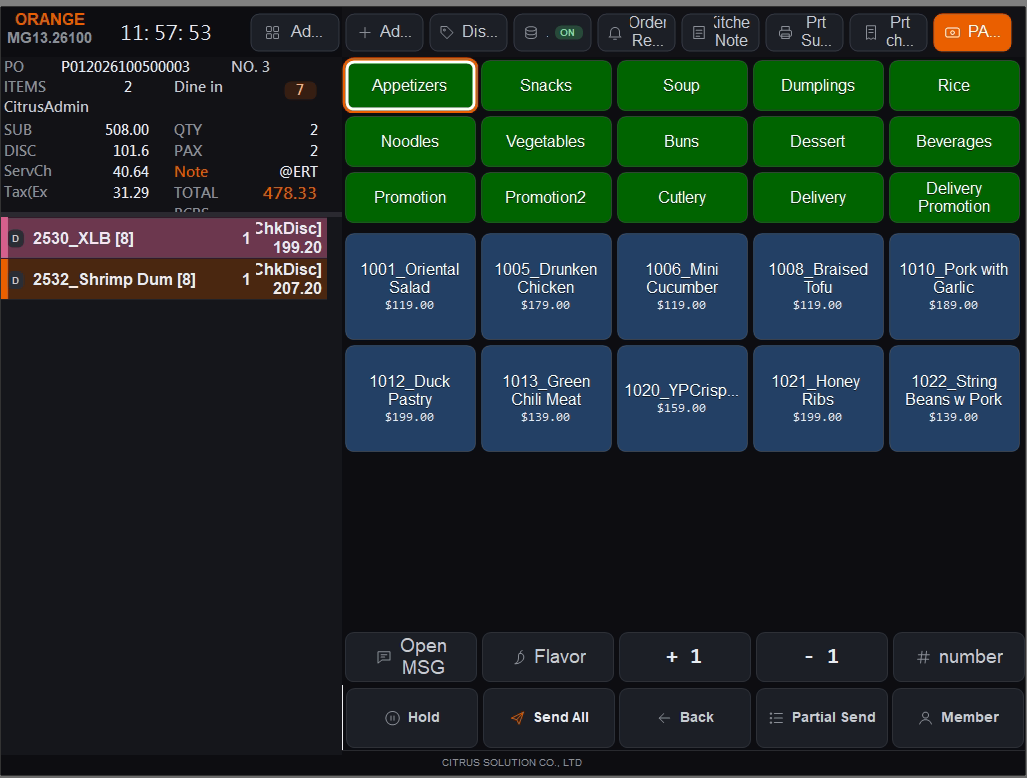
POS ordering screen: order list on the left, category and item keys on the right

On the floor

Four places where a restaurant's flow breaks

The queue at the door

Numbers are called by voice and guests cannot tell how long they will wait.

Ordering jams

Only the counter can take orders, so peak hours back up.

Missed tickets

Paper tickets get lost or out of order, and rushing an order means shouting.

Totals that do not match

Payment types keep multiplying, and shift closing and reports are compiled by hand.

One set of store dataHandle these four with four separate tools and the data breaks in between. Orange puts queueing, ordering, payment, kitchen and reports on one set of data: every module reads the same menu, prices, sold-out status and orders.

What it is

One POS, two ways of working

Table service

Start from the table map: open a table, order, send, move, merge, split and print the bill.

Quick service

Dine-in, takeaway and delivery orders go straight to payment, with hold and an unpaid list.

Chain stores

Menu and promotions come down from HQ and sales data goes up automatically, so every store stays consistent.

Screens

The screens a store uses every day

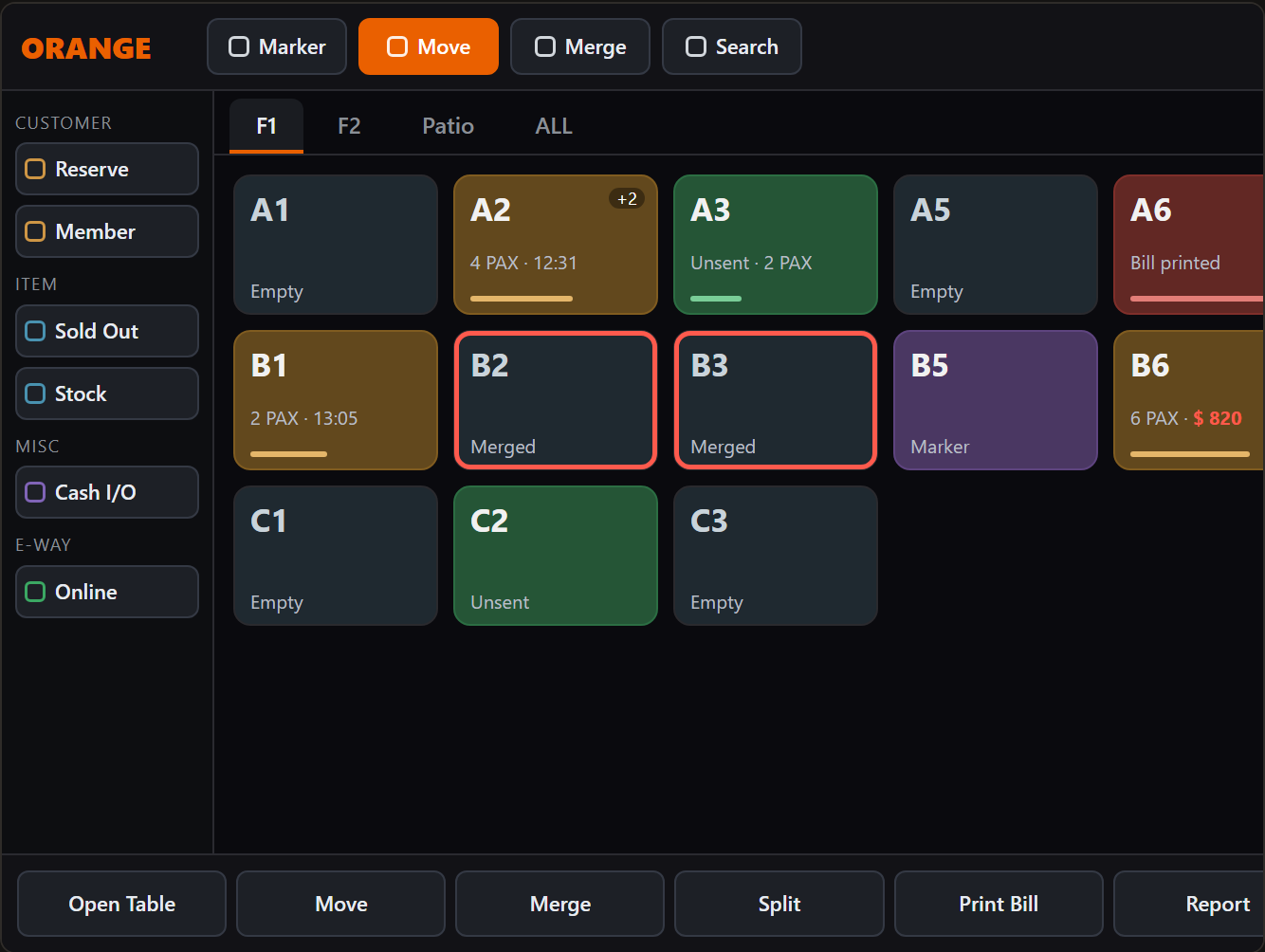
Table map: every table at a glance

Table cards
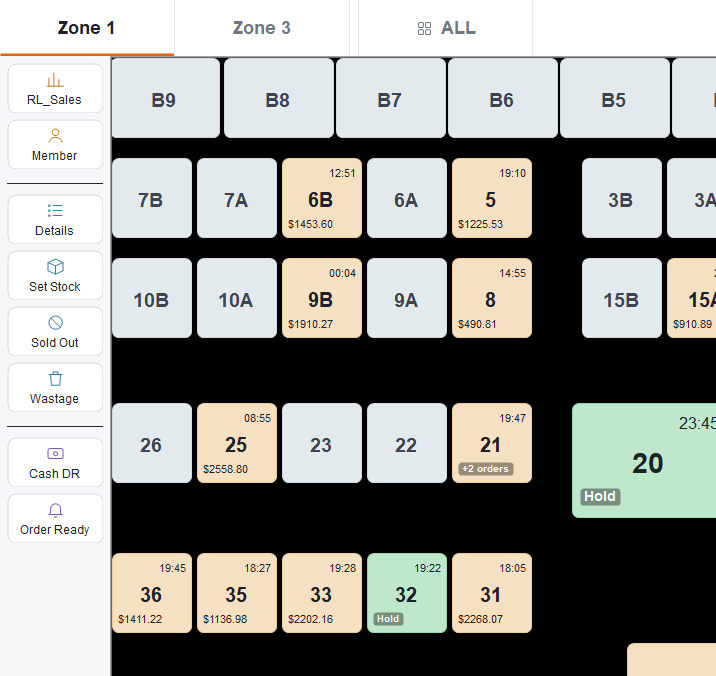
Each table shows guests, opening time and amount, coloured by state: empty, dining, unsent, bill printed.
Floors and overview
Tabs per floor or zone, and an ALL page that shows every table.
Move, merge, split
Merged tables get a red frame and tables with several orders show the count. Minimum spend per table is supported.
POS table map
Table map (design mock-up)

Ordering: item keys laid out the store's way

Category and item keys
Category, item, flavour, size and quantity are all on one screen, with key colours set by the store.
Sold-out items are blocked
When an item sells out or is paused, the POS blocks ordering and sending at once. Limited stock shows on the key itself.
Flavour, size and notes
Flavour, size, add-ons and free-text messages, plus rush and hold to the kitchen.
Sending
Send all, send part, or hold. Barcode scanning, weighed items and open price are supported.

POS ordering screen
Ordering screen

Payment: several methods on one bill

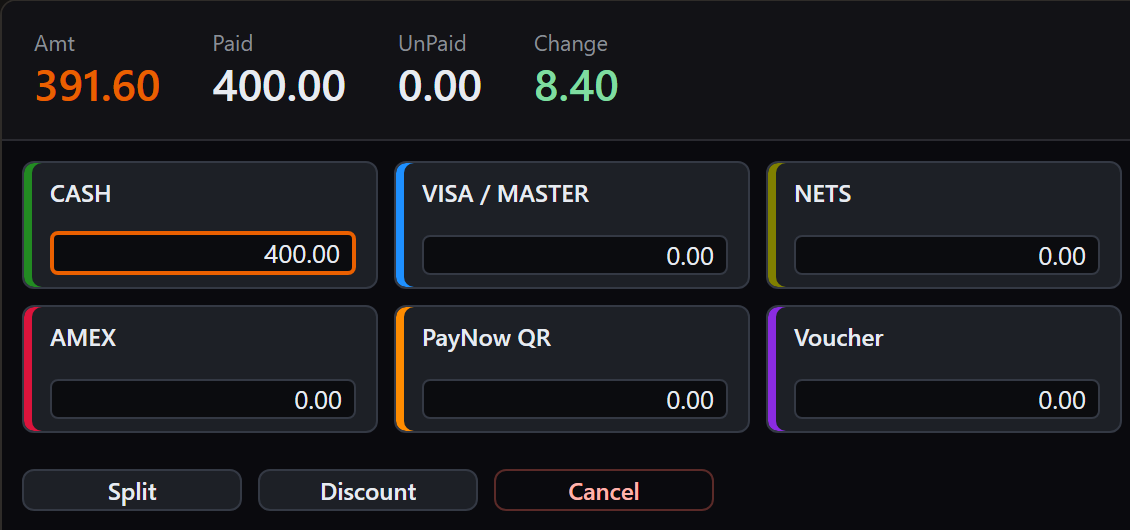
Multiple payment methods
Cash, cards, mobile payment and vouchers can be combined. Stores configure their own methods.
Card terminal integration
The POS sends the amount straight to the card terminal and the result is written back to the bill, so nobody keys it in twice. Connected to UOB, NETS, 2C2P, CTBC Bank and Taishin Bank.
Split and discount
Split payment, discounts and vouchers. Hotels can use Room Charge.
Invoicing
Supports Taiwan cloud e-invoice and invoice printers.
POS payment screen
Payment screen (design mock-up)

Light and dark themes

Choose for your lighting
Light for bright counters, dark for dim dining rooms. Functions and button positions are the same.
Multilingual interface
The interface comes in five languages, and menus can switch language by login.
Works on small screens
It also runs on older 1024 x 768 terminals.
Table map in the light theme: card colours mark free, occupied and on-hold tables, with seating time and amount
Table map in the light theme (actual screen)

Online orders: taken on the same POS

Online and QR orders land in the POS
Accepting, adding items and printing happen in one place, with no separate tablet to watch.
New-order alert
An icon and a sound announce each new delivery or online order.
Accept or decline
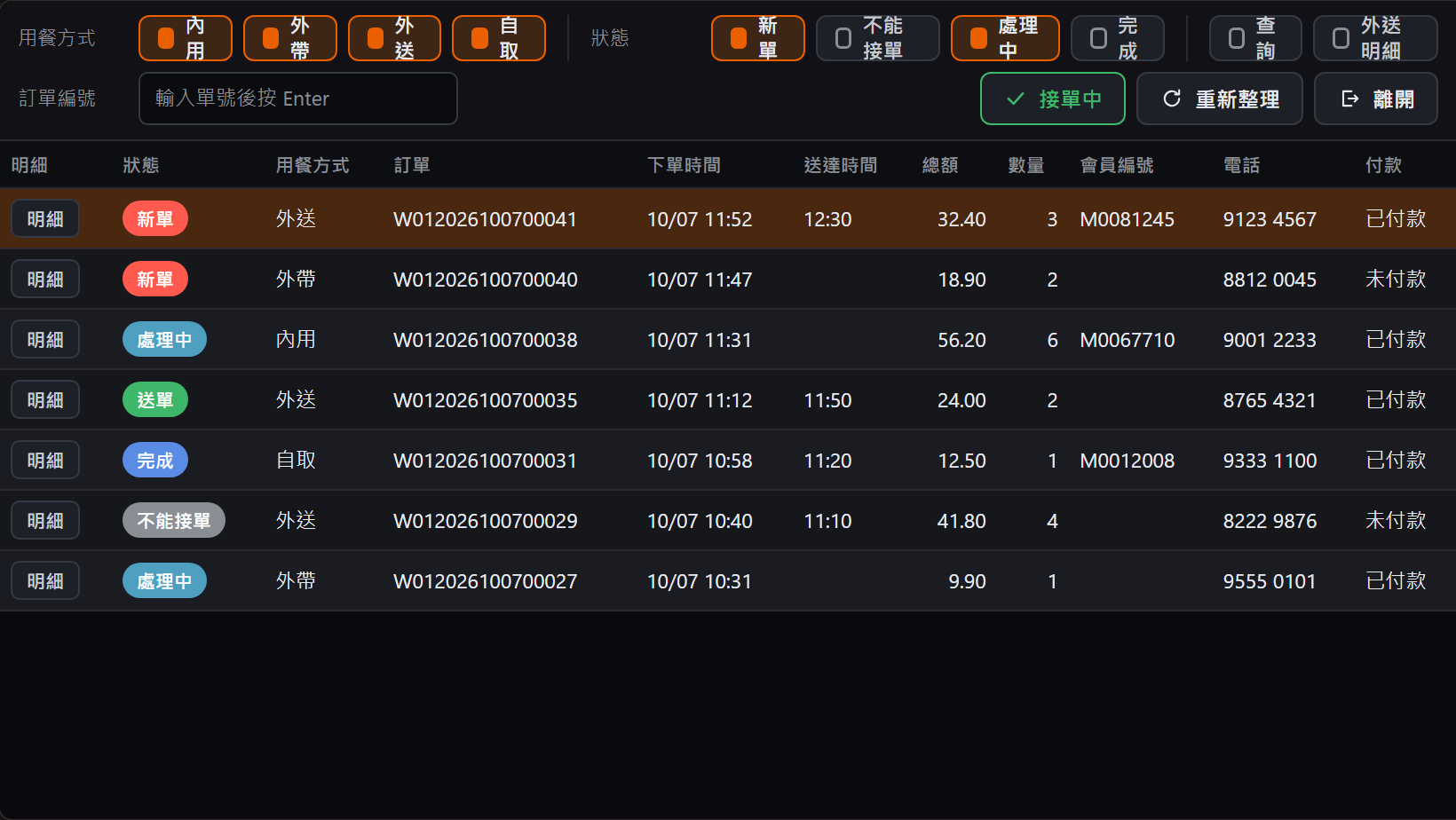
Filter by service type and status, check the details, then accept or decline. Dine-in orders pick a table on acceptance.
Online order list
Online order list (design mock-up) (Chinese interface shown)

Platforms

Beyond Windows: Android and iOS versions

The Android and iOS versions of the POS have been released. Screens will be added here later.

Windows

Runs on common POS terminals and connects to cash drawers, customer displays, scales and printers.

Android

Runs on Android tablets and POS devices, which widens the choice of hardware.

iOS

Runs on iPad, for stores that care about counter appearance and mobility.

One back officeWhichever platform a store uses, menus, promotions and reports are managed in the same cloud back office.

Store management

What a store needs beyond ordering

Shift closing

Cash in and out, the shift report and totals by payment type come from the system, with nothing compiled by hand.

Sales reports

Shift, daily and monthly reports, by payment type and by item. Live sales are available right on the POS.

Menu and payment settings

Stores maintain their own items, prices and payment types.

Stock and wastage

Stock quantities and wastage records. An item can be marked sold out automatically when stock reaches zero.

Deposits and pre-ordering

Take and redeem reservation deposits, and accept pre-orders.

Members and points

Member records and points rules, with links to external membership systems.

Staff and attendance

Staff accounts, permissions and clocking in and out. Order changes, discounts and cash-drawer access are permissioned separately.

Printing that keeps going

The print service runs in the background. Errors are logged and trading carries on.

Training mode

New staff practise in training mode without touching live sales data.

Peripherals and integrations

What the POS connects to

CategoryDetail
KitchenKDS kitchen display; up to 20 kitchen printers per store, plus label printers
Ordering devicesPhone and tablet ordering, QR ordering, self-service kiosks
HardwareReceipt and kitchen printers, card terminals, cash drawer, customer display, scale, barcode scanner, fingerprint reader
Cards and mobile paymentDirect terminal integration with UOB, NETS, 2C2P, CTBC Bank and Taishin Bank, plus mobile payment
InvoicingTaiwan cloud e-invoice, invoice printers
HQ and back officeMenu and promotion sync, sales upload, cloud back office and reports
Third-party systemsERP such as SAP, delivery platforms such as Grab, hotel management systems, membership and CRM such as Ascentis
Open interfacesKDS Hub REST API
Keeps tradingStores keep selling when the network is down and sync when it returns. A backup database server can be configured.

Rollout

Live in four steps

You can roll out in stages: the POS first, then the KDS or the queue system.

Requirements

We learn the store format, the menu structure and the equipment already in place.

Setup

We build the menu, tables, payment types and printing rules.

Install and train

We install on site and train the store staff.

Go live and maintain

We stay close during the first days, then keep maintaining and updating.

Want to see the POS running?

Book a demo